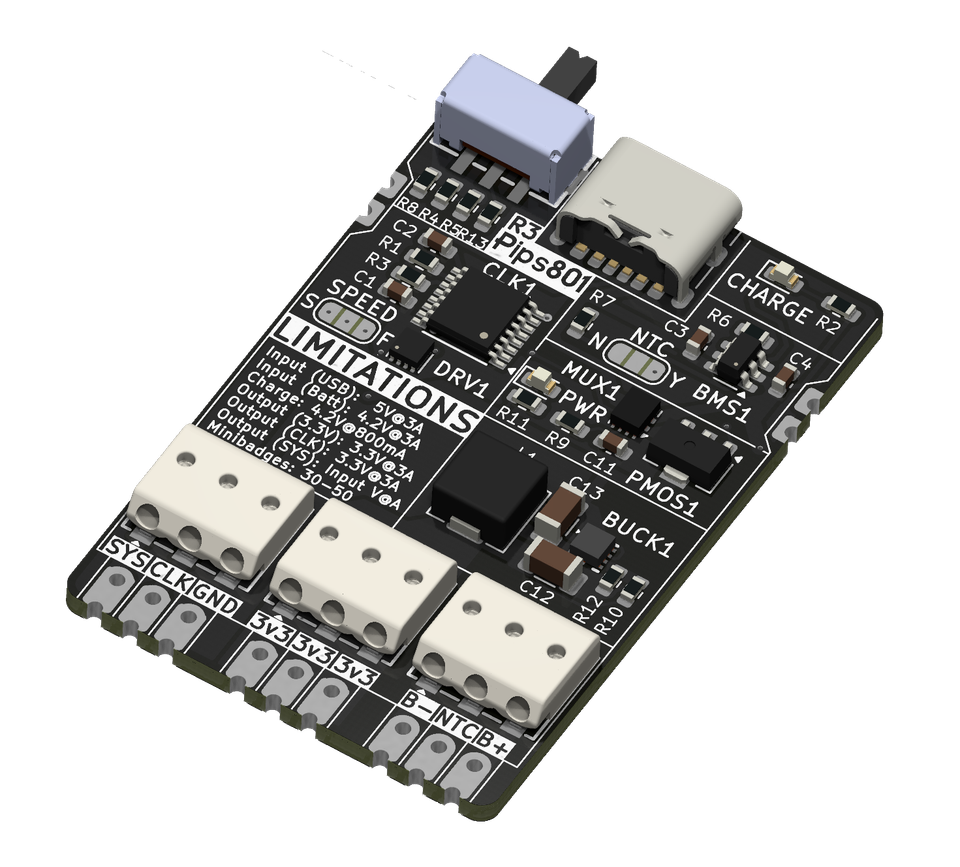
WIP: Pretty Perfect PCB Pictures
How to get the best high-resolution renders of your KiCad PCB project, from within KiCad, without hating yourself
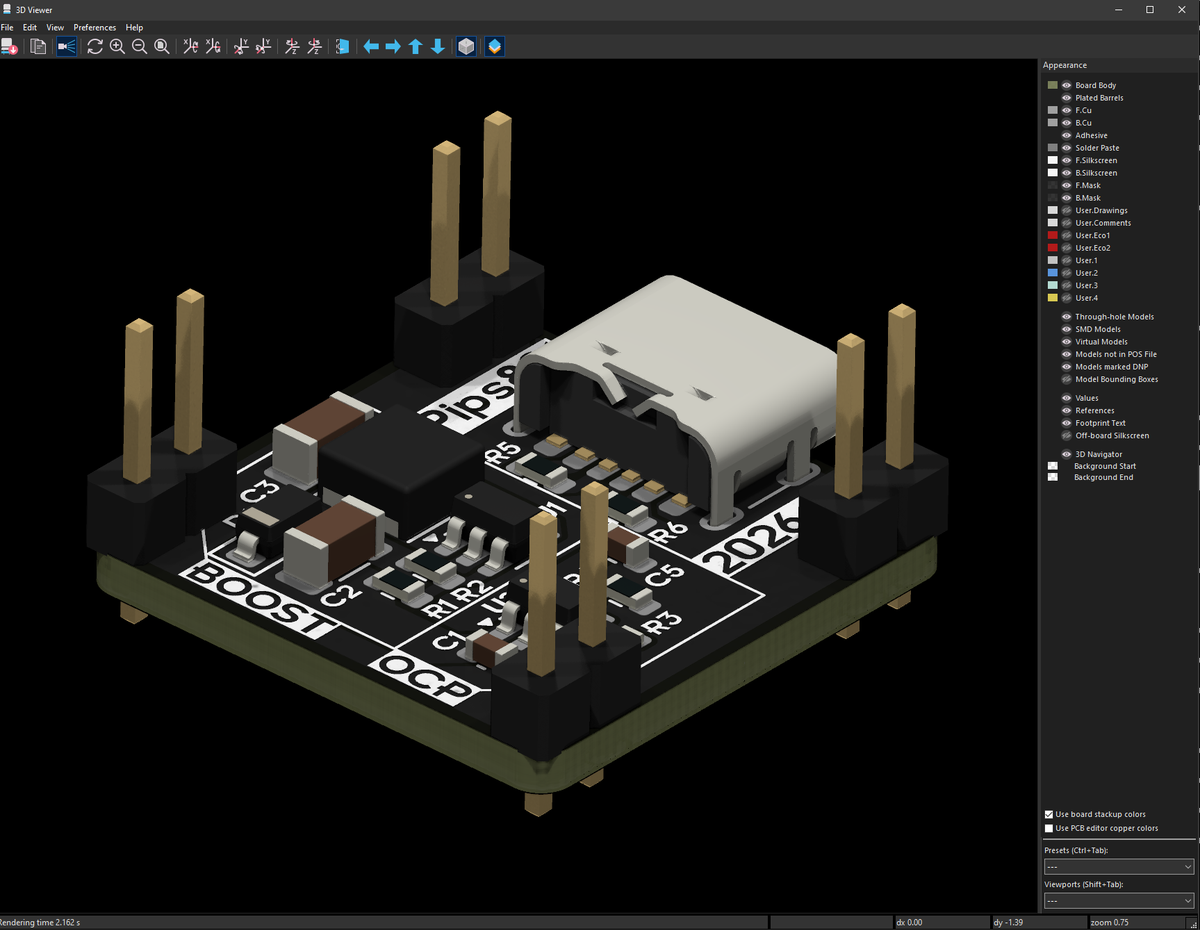
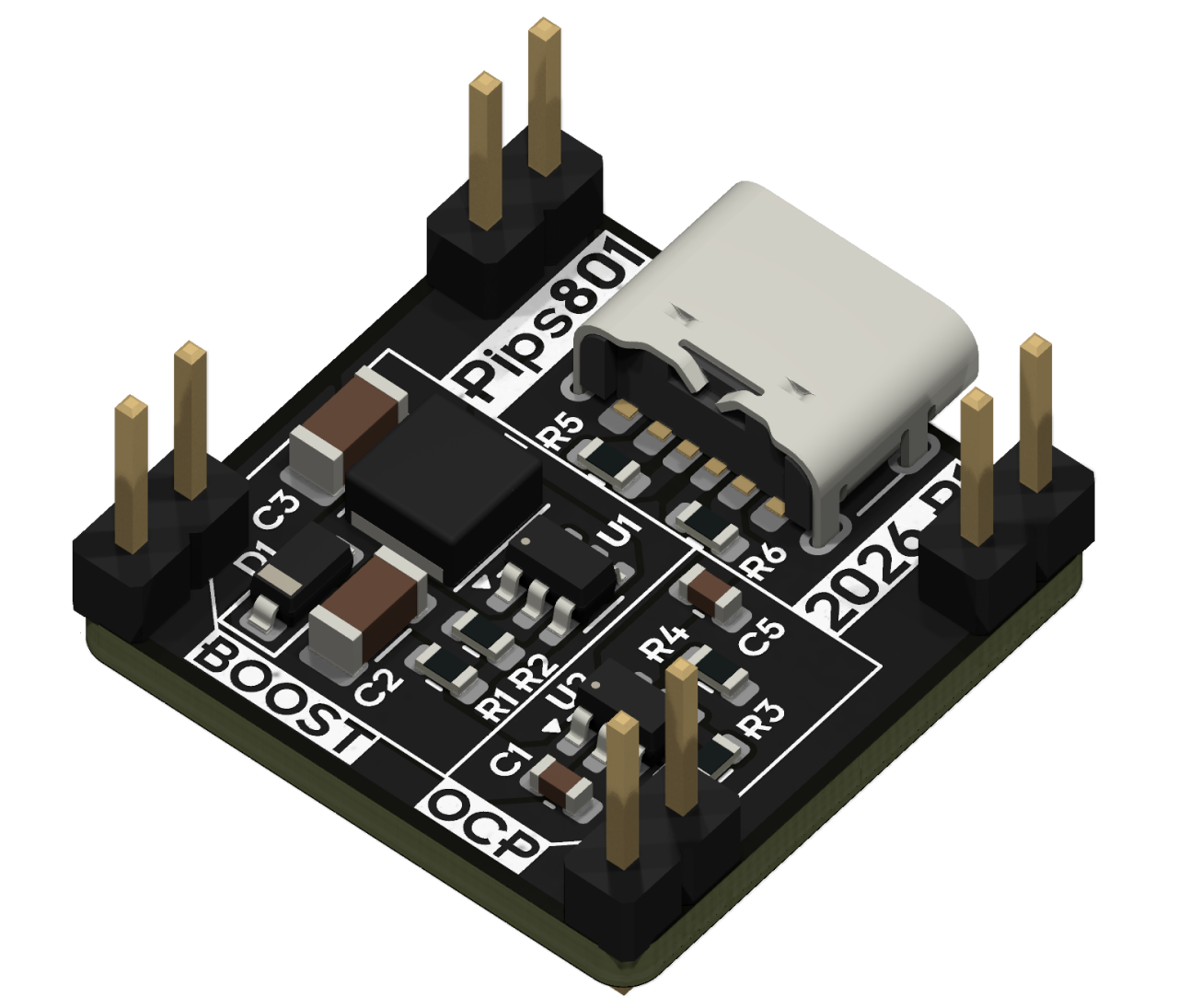
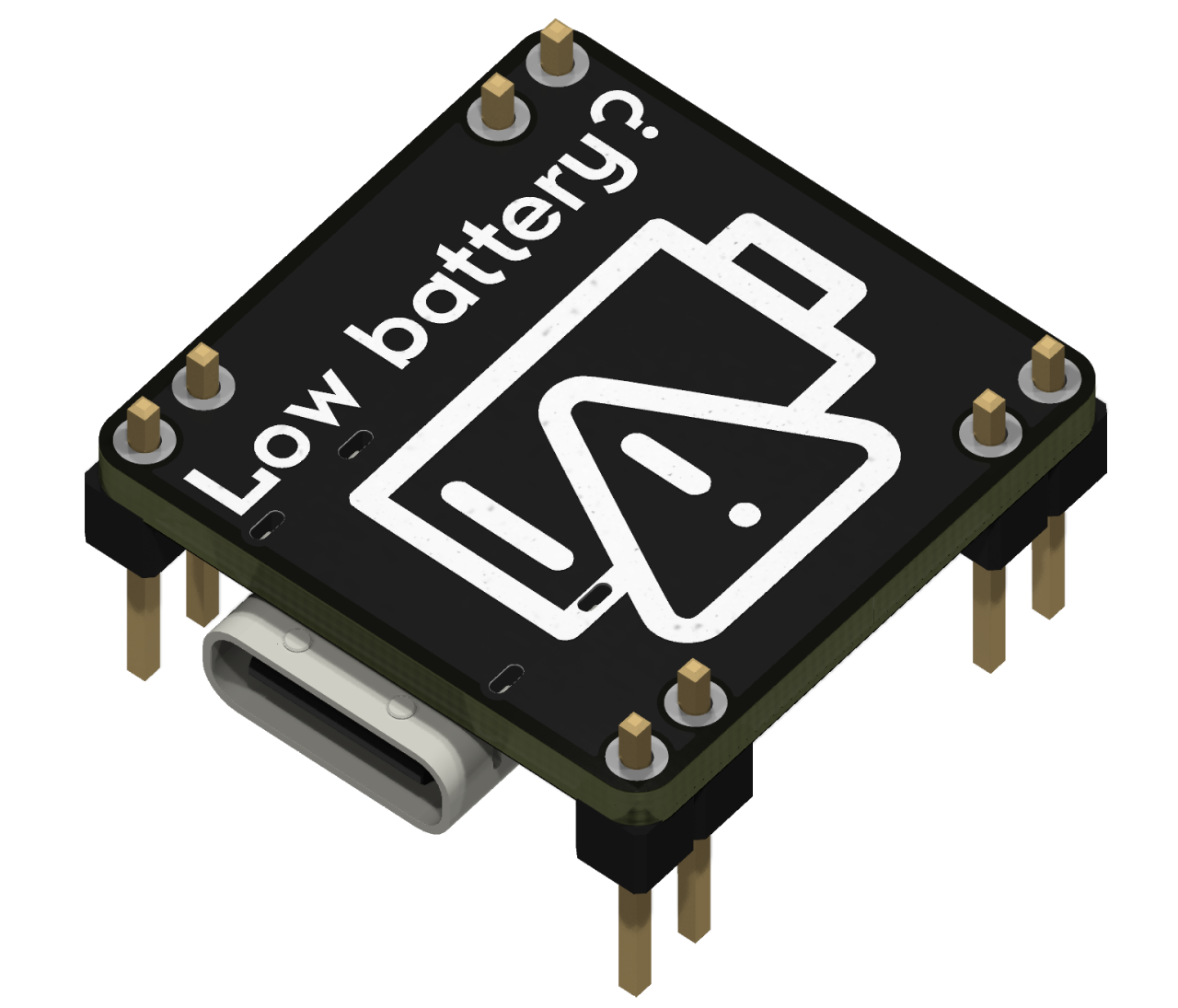
An example render, copied and pasted directly from KiCad
Setup
3D Models
First, we want to ensure that you have all of the relevant 3d models for components on your board. If your board is basic enough that it only has passive analog components, such as LEDs, capacitors, and resistors, then most models will already be in place.
Confirm which models are missing by checking the 3D Viewer
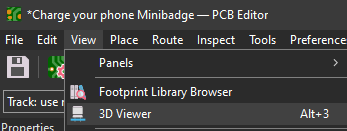
Once you have identified every component that doesn't have a 3D model, we can start to hunt them down. You can view, add, edit, or change the 3D model associated with each part by opening the Properties menu (or press E with the selected component) for any component footprint on your board
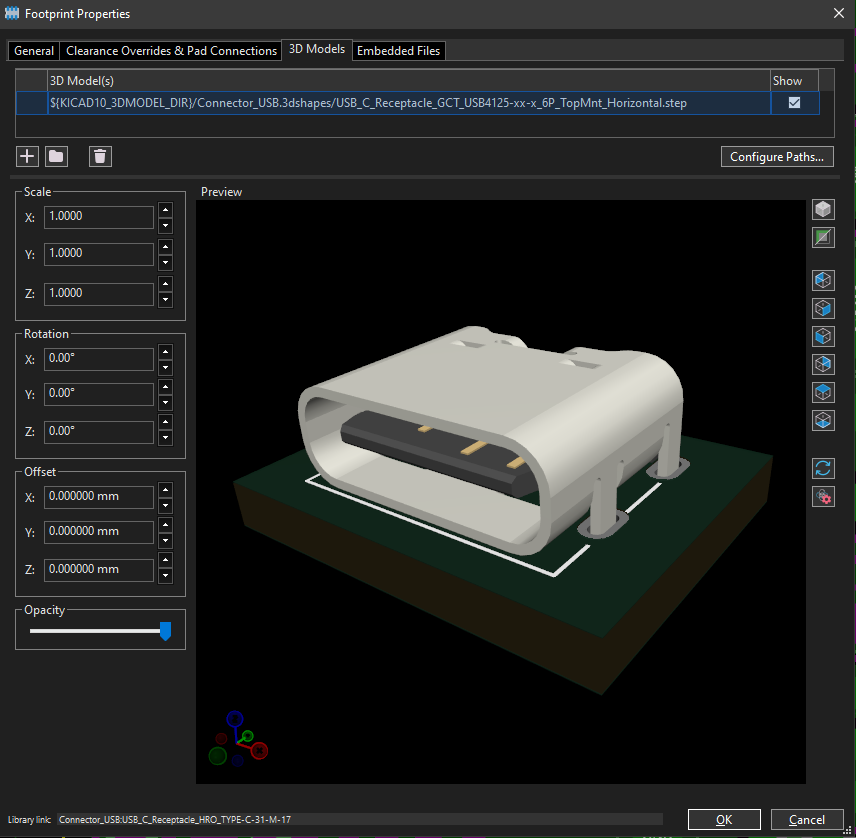
Get as many 3d models in place as possible. Find them online, use random ones in KiCad's expansive library that are close enough, etc. All footprints should have a model. You will add them to the properties. You will need to position them, sometimes scale them, and offset them, so the model lines up with the actual footprints pads/holes.
Board Properties
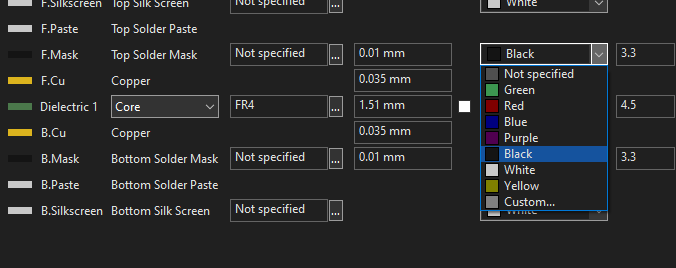
We want to make sure that the 3D Viewer uses the colors and properties that we are making our final boards with. Silkscreen color, Soldermask color, finish, and thickness are the values we need to set.
Set your specific board stackup colors
Set render options
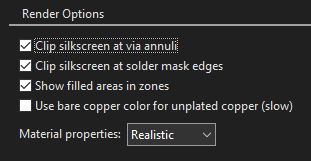
Buttons and options
- Use board stackup colors
- orthographic vs isometric
- Clipping silkscreen
- rendering all models
- Flip board button
- rotate board buttons (for cool 2.5D)
- Render button
- Copy image to clipboard
Process
Ensure everything is setup correctly
- Colors match
- 3d models present
- Background set to transparent
- no clipping of parts, silkscreen, etc
- Use orthographic projection or not
- Arrange board in position we want
- For repeatability and better orthographic projection, use rotation buttons
- resize window to fit part
- press render
- copy to clipboard
- Cont: flip board, rotate board, render, copy again